Bring your contacts in.
Start with a better list.
Save your contact spreadsheet as a CSV file, open Email Blaster’s list-import area, upload the file and check that each column matches the right contact field. Review the import result and a sample of records before using the list in a campaign.
This guide takes you through file preparation, field mapping and the checks that help UK businesses avoid importing the wrong data. New to Email Blaster? Explore our email marketing software and try the workflow with your own permission-based audience.

Watch: import a mailing list into Email Blaster
Follow the screencast, then use the file-preparation and review checks below alongside your own import.
What should you check before importing contacts?
Keep an untouched copy of the original export. Work on a separate copy so you can compare records and explain any changes later. Before uploading, decide which contacts belong in your active audience and which must remain excluded.
Check permission and keep opt-outs separate
For individuals, UK electronic marketing rules generally require consent or an applicable exception. A saved address alone does not establish permission. See the ICO’s electronic mail marketing guidance for the rules that apply to your audience.
Email Blaster’s sending policy requires permission-based lists. Do not import purchased or scraped addresses for broadcast campaigns. Ask the team before importing a list if its source or permission record is unclear.
Keep a separate record of unsubscribes and other exclusions when moving from another platform. The ICO recommends a suppression or “do not contact” list to prevent people who object from being added back by mistake. Follow its guidance on respecting marketing preferences. Importing a file must never reset someone’s choice.
Gather the information you will actually use
- An email address for each contact you intend to import.
- Useful personalisation fields, such as first name or company.
- A clear description of the list’s source and purpose.
- Your existing opt-out and suppression records, preserved separately.
Keep unnecessary personal information out of the working file. A newsletter import normally has no need for payment details or private customer notes.
How should you prepare a CSV contact list?
Use one contact per row and one type of information per column. Give the columns clear headings so you can recognise them when checking the mapping. This example uses fictional addresses and a deliberately small set of fields.
| Email address | First name | Company |
|---|---|---|
| alex@example.com | Alex | North Street Studio |
| sam@example.com | Sam | Harbour Workshop |
Download this example CSV to see the layout. Replace the fictional rows with suitable contacts before using it. It is a preparation example, not an Email Blaster field-name specification.
Save the data, then reopen it
Export or save the relevant sheet as CSV in your spreadsheet application. Renaming an Excel workbook from .xlsx to .csv does not convert its contents. Reopen the exported file and check the column boundaries, names with accents and any values containing commas.
CSV stores records as text; it does not preserve workbook tabs, cell colours or formulas as a spreadsheet does. The CSV format described in RFC 4180 uses comma-separated fields and explains quoting for values that contain commas, line breaks or quotation marks. Let the spreadsheet’s CSV exporter handle quoting instead of manually inserting commas between customer details.
- Remove empty rows and notes outside the contact data.
- Keep the email address in its own column.
- Review obvious duplicates without discarding different people who share a name.
- Check a few rows from the beginning, middle and end of the export.
- Keep identifiers and telephone numbers as text where leading zeroes matter.

How do you upload and map the contact fields?
Email Blaster’s published getting-started instructions describe CSV import through the list-import area, with a file picker or drag and drop. The Importing a Mailing List video provides an accompanying on-screen demonstration.
Open the list-import area
Sign in and find the import-list section. In the supplied tutorial, the import wizard takes you through four screens, including GDPR & Terms, Map Data and Save List.
Select your prepared CSV
Browse for the exported file or drag it into the import screen. Double-check the filename and modification date so an older export is not selected accidentally.
Complete the GDPR & Terms screen accurately
The tutorial shows questions about your audience, how the list was gathered and proof of positive opt-in. Describe the source truthfully and read the terms before proceeding. If you cannot support the declarations shown, stop and ask our team.
Review the column mapping
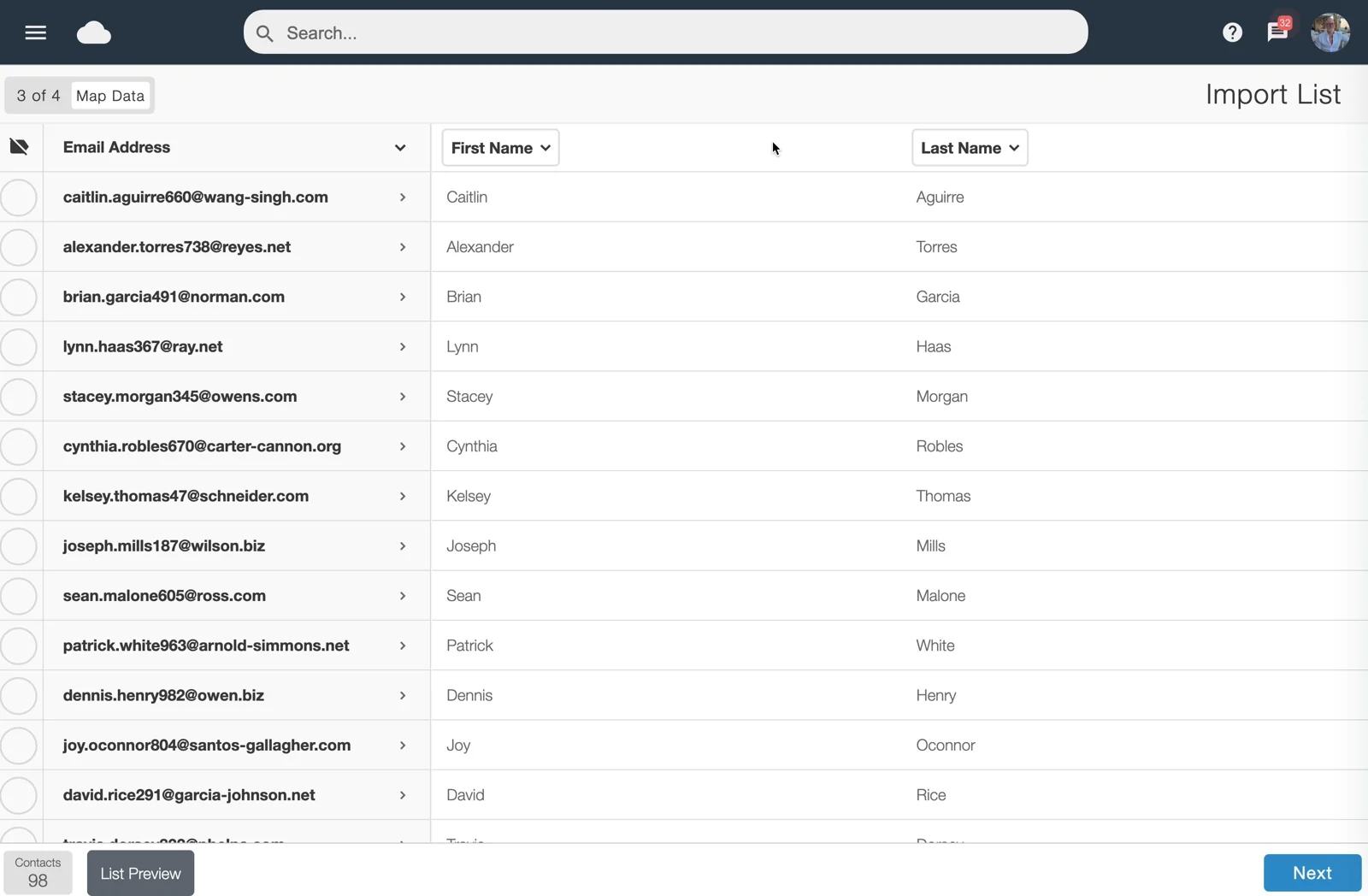
On Map Data, match the email column to the email-address field. Check each additional column against its destination, including custom fields you intend to use. Confirm values as well as headings: a column called “Name” might contain a full name rather than a first name.
Review the available checks and complete the import
On Save List, choose a meaningful list name and folder. The tutorial also shows tags, List Ai Auto-Fix and List Ai Auto-Remove options. Review their effects before using Finish. Investigate any rejected rows. If you cannot tell how a setting affects existing contacts or suppressions, pause and ask support rather than guessing.
Inspect the resulting list
Check the contact fields and totals. Keep the original export and any import report together so differences can be investigated before sending.
Do not guess which setting updates an existing record
Before re-importing an existing audience, confirm the intended update behaviour with our team. This guide does not assume that every duplicate is overwritten, that every field is merged or that a blank value leaves an existing value unchanged.
These steps follow the supplied screencast and published workflow; account screens and option wording can change. The guide does not represent a live import into a customer account. If your screen differs, use the in-account help or ask our UK support team.
Why might your imported contact total be lower?
The number of spreadsheet rows is a starting point, not a promise of the number of sendable contacts. A file can include duplicate records, incomplete addresses or contacts who must remain excluded.
Email Blaster’s data-cleansing information describes checks for duplicate contacts, common address errors, inactive domains, unsubscribes and suppressions. Review the result rather than assuming every reduction means the file failed. An address-quality check cannot prove permission or guarantee inbox delivery.

Use a simple reconciliation note
Record the source filename, export date, starting row count and resulting list count. Note any reported exclusions or errors. If the figures do not reconcile, keep the original messages and ask support to explain the difference. Do not keep importing the same file in an attempt to make the totals match.
Check a sample of the saved contact records
Verify an email address, a first name and a company value against the source. Check whether punctuation and accents survived the export. If you intend to personalise a message, preview the actual merged content and choose a sensible fallback for missing names.
Importing contacts and sending a campaign are separate tasks. Before sending, check the audience, sender identity, links and unsubscribe option. Follow the domain verification guide and send a test message to an address you control.
How do you fix common contact-import problems?
| What you see | What to check | Useful next step |
|---|---|---|
| Everything appears in one column | The file may use a different separator or may not be a genuine CSV export. | Re-export as comma-separated CSV and reopen it before uploading. |
| Names appear in the wrong field | The selected destination may not match the source column. | Compare headings and example values; confirm the mapping before completing the import. |
| Accents or symbols look wrong | Text encoding may have changed during export. | Try a UTF-8 CSV export where available, and check the result. Ask support if the issue remains. |
| Some contacts are missing | Duplicates, missing addresses, checks or prior exclusions may explain the difference. | Read the import result and preserve opt-outs; investigate instead of bypassing checks. |
| The screen shows a file or row error | Note the exact message and whether it names a row or field. | Correct the working copy. For account-specific limits or accepted file settings, contact support. |
When asking for help, provide the filename, approximate number of rows, time of import and exact error message. Start with a small anonymised example rather than emailing an entire customer database unnecessarily.
Common questions about importing contacts
Can I import an Excel contact list?
Start by exporting the relevant worksheet as CSV, the format described in Email Blaster’s public import instructions. Keep the original workbook separately. Do not assume that changing the filename extension is sufficient.
Can I import names and company information too?
Yes. The published import workflow supports additional contact columns for personalisation. Map each one deliberately and check the saved result before using it in a message.
Can I bring unsubscribed contacts back by uploading them again?
Do not use an import to bypass an opt-out or suppression. Preserve the exclusion and ask support if you need help transferring suppression records from another system.
Will importing a list send an email?
This guide covers preparing and importing your audience. Treat campaign creation, testing and sending as separate decisions. Review the chosen audience before scheduling any message.
Try your first list with Email Blaster
For a UK business that wants help from real people, our team can talk through file preparation and the import process. Explore the Email Blaster platform, open a free account or contact us before importing if anything is unclear.