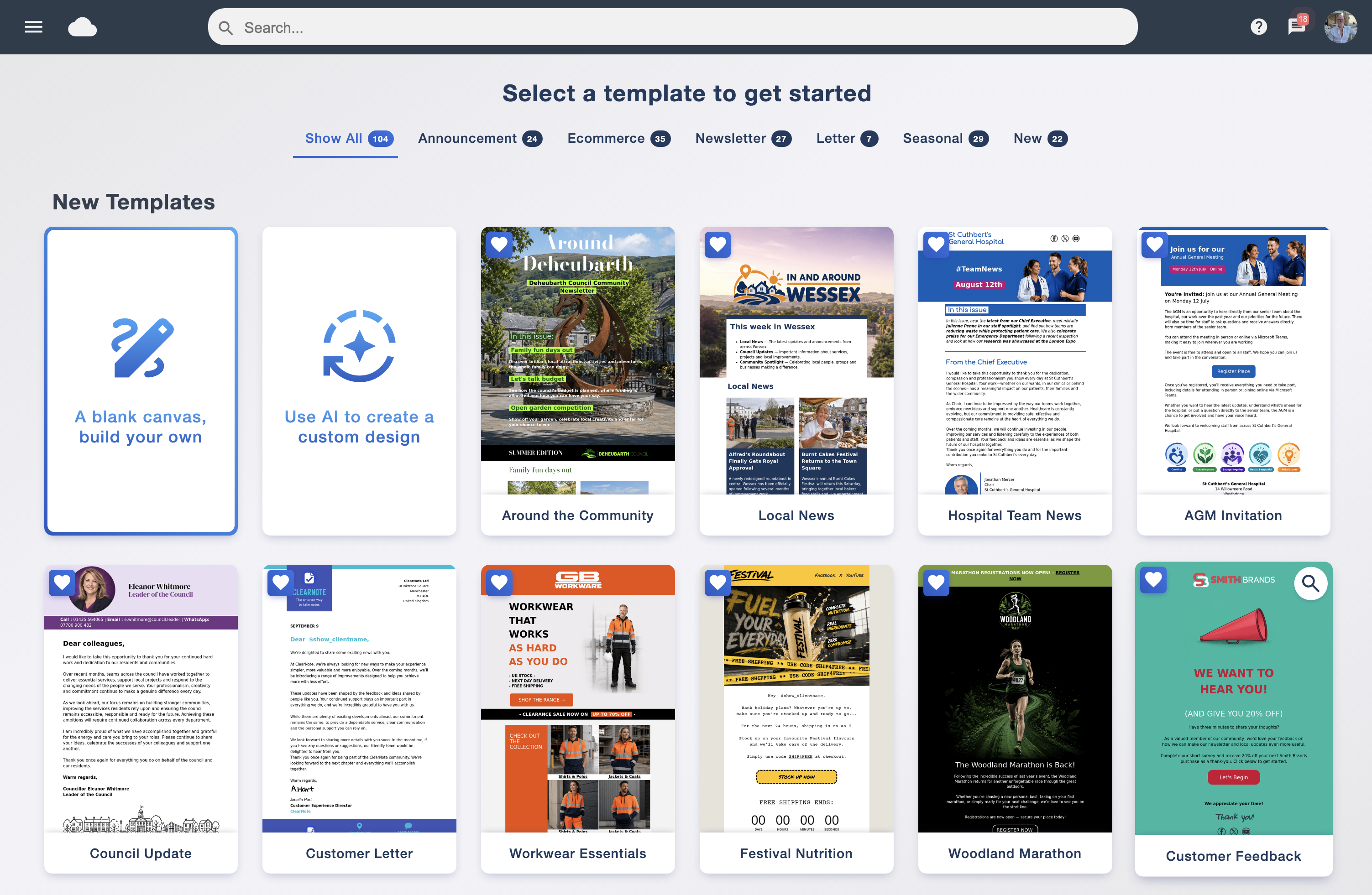
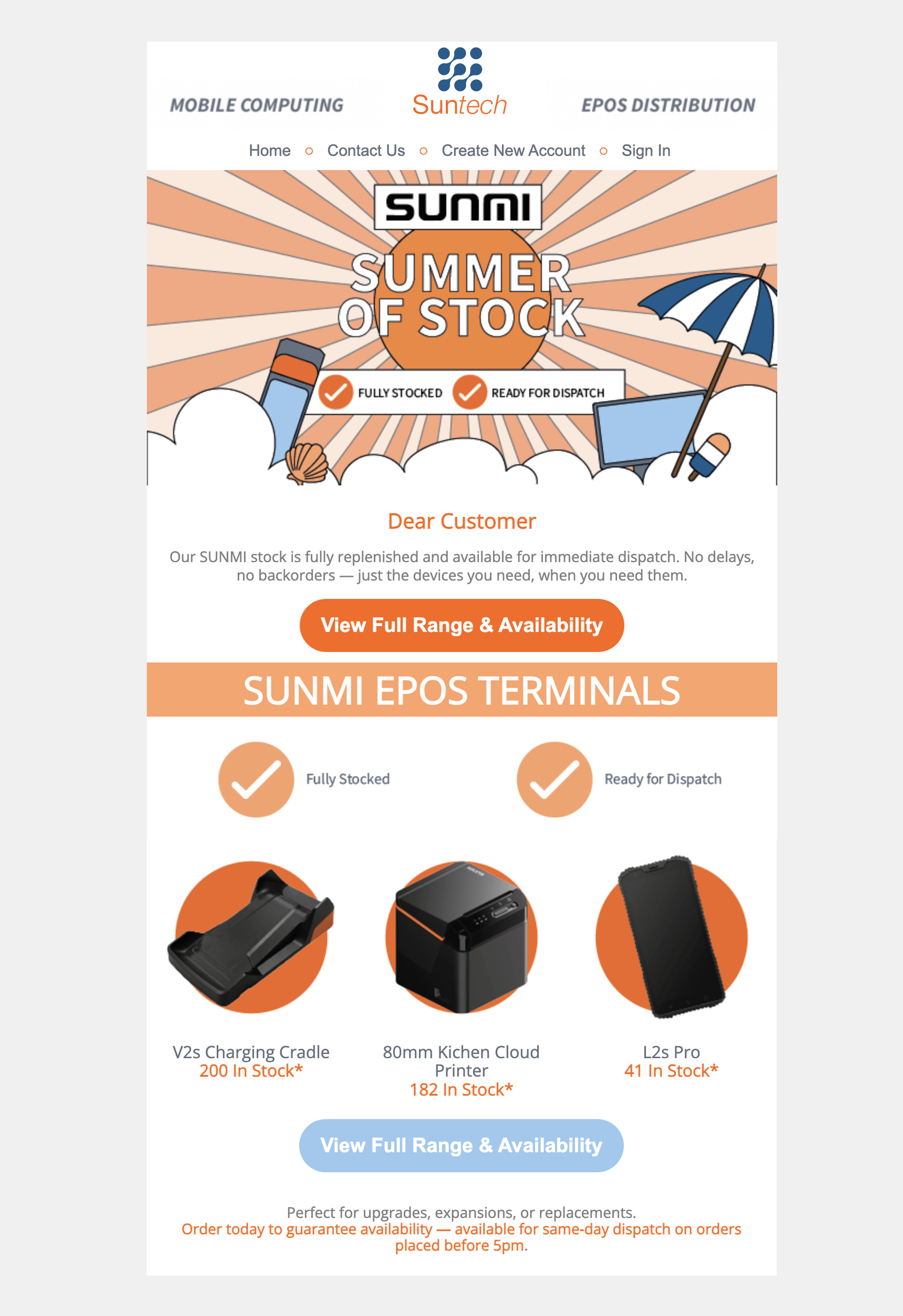
Use readable text, meaningful images and a clear call to action.
Why the same email can look different
An email client is the app or website someone uses to read email. It controls how your message’s HTML, CSS and images are displayed. The device, account type, app version and reader’s settings can all influence the result.
A campaign that looks good in a browser preview can still change in a delivered inbox. Aim for a consistent message and a working next step, while allowing small differences in fonts, spacing or decorative effects.
Choose fallbacks so essential content survives unsupported styling.
Check real inboxes alongside the design preview.
Test client families, not just brand names
Prioritise the clients your audience uses. A business audience may need careful Outlook testing; a mixed consumer list may need more coverage across Gmail, Apple Mail and mobile apps. If you have reliable information about your audience, use it to choose your tests.
Classic Outlook for Windows
Classic Outlook has Word-based HTML handling and remains an important test environment. Check spacing, backgrounds, buttons and multi-column layouts in an actual delivered message.
New Outlook & Outlook on the web
New Outlook for Windows is based on WebView2. Treat it as a separate test from classic Outlook; one result should not be assumed to represent both.
Gmail
Google documents support for style blocks, a defined set of CSS properties and media queries. Unsupported rules may be ignored. Test web and mobile viewing where relevant.
Apple Mail & mobile inboxes
Check narrow screens, light and dark appearance, image settings and text sizing. App and account differences mean one phone test cannot represent every mobile reader.
Further reading: Microsoft’s Word HTML guidance, new Outlook overview and Gmail CSS support.
Which email design features work where?
Compare the main email design features across popular desktop, webmail and mobile readers. These are published test results, not a guarantee for every current app version or account configuration.
YesSupported in the recorded test.NoNot supported natively in that test.PartialLimited support or a condition to check.TestNo separate result available.
Choose a reader below to see its feature support. Follow a feature name for the test versions, limitations and examples. A Yes label still needs a delivered-message check; some underlying tests cover older versions.
Desktop & webmail
Link to this reader — copy this link to share the selected reader.
Showing support for Classic Outlook / Windows
Standard font styling
YesYesYesYesYesYesYesYesYesYes
Custom web fonts
YesPartialNoNoNoNoNoYesNoNo
Background colours
YesYesYesYesYesYesYesYesYesYes
Background images
YesNoYesYesYesYesPartialYesPartialYes
Gradient backgrounds
YesNoNoNoNoYesNoYesNoYes
Borders
YesPartialYesYesYesYesYesYesYesYes
Rounded corners
YesNoYesYesYesYesPartialYesPartialYes
Drop shadows
YesNoYesYesYesNoNoYesNoYes
Spacing / padding
YesPartialYesYesYesYesYesYesYesYes
Maximum layout width
YesPartialYesYesYesYesYesYesYesYes
Responsive media queries
YesNoPartialPartialPartialPartialPartialNoPartialPartial
Custom dark-mode CSS
YesNoPartialPartialPartialNoNoNoNoNo
CSS style blocks
YesPartialYesYesYesPartialYesYesYesYes
Flexbox layouts
YesNoYesYesYesYesPartialYesPartialYes
CSS grid layouts
YesNoYesYesYesYesYesYesYesYes
PNG images
YesYesYesYesYesYesYesYesYesYes
SVG images
YesYesYesYesYesPartialYesYesYesYes
Animated gifs
YesPartialYesYesYesYesYesYesYesYes
Embedded video
YesNoNoPartialNoNoNoYesNoNo
Embedded forms
YesNoPartialPartialPartialYesYesYesYesNo
Mobile email apps
Link to this reader — copy this link to share the selected reader.
Showing support for Outlook / iOS
Standard font styling
YesYesYesYesYesYesYesYesYesYes
Custom web fonts
YesNoNoNoNoNoNoPartialNoYes
Background colours
YesYesYesYesYesYesYesYesYesYes
Background images
YesYesYesYesYesPartialPartialYesYesYes
Gradient backgrounds
YesYesPartialNoNoNoNoPartialYesYes
Borders
YesYesYesYesYesYesYesYesYesYes
Rounded corners
YesYesYesYesYesPartialPartialYesYesYes
Drop shadows
YesPartialPartialYesYesNoNoYesYesYes
Spacing / padding
YesYesYesYesYesYesYesYesYesYes
Maximum layout width
YesYesYesYesYesYesYesYesYesYes
Responsive media queries
YesPartialPartialPartialPartialPartialPartialPartialPartialYes
Custom dark-mode CSS
YesNoNoPartialPartialNoNoYesNoNo
CSS style blocks
YesPartialPartialYesYesYesYesYesPartialPartial
Flexbox layouts
YesPartialPartialYesYesPartialPartialYesYesYes
CSS grid layouts
YesPartialPartialYesYesYesYesYesYesYes
PNG images
YesYesYesYesYesYesYesYesYesYes
SVG images
YesPartialPartialYesYesYesYesYesYesYes
Animated gifs
YesYesYesYesYesYesYesYesYesYes
Embedded video
PartialNoNoNoNoNoNoPartialNoNo
Embedded forms
YesPartialYesYesYesNoYesYesNoNo
Important differences behind the labels
Classic and new Outlook: they are different environments. New Outlook’s labels use Outlook.com compatibility as a guide because they share a web-based foundation. Check your final email in the app too.
Gmail account types: results for a Gmail app may differ when it is used with a non-Google account. Check the linked notes before relying on responsive CSS or other advanced styling.
Workarounds: a No for native CSS does not rule out an email-specific workaround, such as VML backgrounds in classic Outlook. Keep a readable fallback.
Images, animation and video: support does not override a reader’s image blocking, playback or accessibility settings. Make essential information available in live text.
Based on Can I Email’s compatibility tests. Always send a test email before your campaign.
Choose effects that can fail gracefully
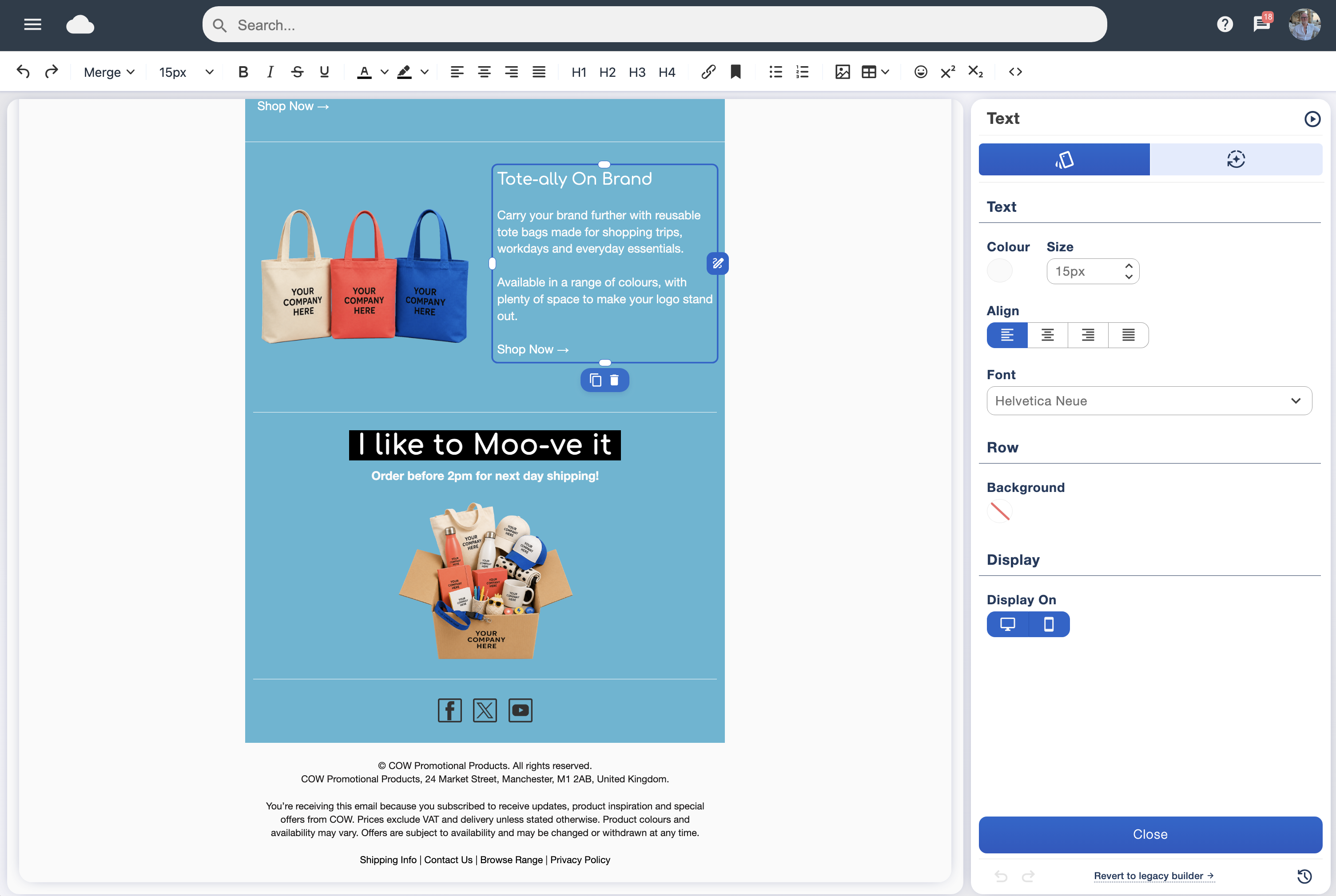
Email HTML is not a normal website canvas. Start with the designer’s existing layout blocks and avoid copying complex web styling into a campaign. If you import custom HTML, use email-specific markup and test the delivered result.
The guide below is a design checklist, rather than a promise of identical support in every client version.
| Design choice | What to watch | A dependable fallback |
|---|---|---|
| Custom fonts | A chosen font may not load or be supported. | Provide a familiar fallback font and check line wrapping. |
| Background images | The image or its positioning may not display as intended. | Use a solid background colour and keep text readable without the image. |
| Rounded corners & shadows | Decorative effects can change or disappear. | Make sure a plain rectangular button or card still works. |
| Multiple columns | Columns may become cramped or stack differently. | Use a logical reading order and a simple mobile layout. |
| Responsive CSS | Support depends on the client and the specific rules. | Keep the base design readable without relying on a media query. |
| Images containing text | Blocked images can hide the message entirely. | Put essential information in live text, with useful image alternative text. |
Make the campaign easy to read and use
People should be able to understand the message and take the next step without zooming or struggling to tap a link. A simple structure is often easier to maintain across screen sizes than a dense newsletter.
- Keep headings short and body text comfortably readable.
- Give buttons and links space so they are easy to tap.
- Check that long URLs and headings do not force sideways scrolling.
- Use a reading order that makes sense when columns stack.
- Use descriptive links and meaningful alternative text.
- Check that the destination page works well on mobile too.
Check contrast and avoid using colour alone to explain a status or offer. Informative images need useful alternative text; purely decorative images can use empty alternative text. Keep the main action available as a readable link or button.
Test dark mode and images switched off
Email apps can treat dark mode differently. Some adjust colours automatically; others preserve more of the original design. Review the delivered message in both appearances where you can, especially logos, transparent images and text on coloured backgrounds.
A transparent dark logo may become hard to see against a dark background. Give important brand elements a suitable background and check that text remains readable if colours change. Do not assume a dark-mode preview in one app represents all inboxes.
The message should work without images
Some readers block remote images. Keep the offer, deadline and call to action in text, and test how image spaces and alternative text behave. Images should support the campaign rather than carry every essential detail.
Privacy settings also affect your reports
Apple’s Protect Mail Activity can download remote content in the background rather than when a person reads the email. As a result, a recorded open is not always evidence of a human read. Review clicks and campaign outcomes alongside opens.
Apple’s Mail privacy guidance ↗ · Explore Email Blaster analytics →
Make animation and video optional to understanding
Animated GIF playback depends on the client, version and settings. Keep the first frame meaningful so a static view still communicates the main point. Avoid flashing content and use animation sparingly.
A linked video thumbnail is a dependable way to promote a video: show a useful still image with a play cue and link to the video page. Do not rely on an embedded player working inside every inbox.
Use a hosted page for forms or interactive experiences that need broad availability. Ordinary marketing emails should not depend on JavaScript or an iframe to deliver their essential content. Specialised interactive formats have their own requirements and limited support, so treat them as enhancements with a normal HTML fallback.
When a deadline matters, include the actual date and time in readable text. A countdown image can become stale or fail to update, so it should not be the only way the reader understands the offer.
Preview the layout test the delivered campaign
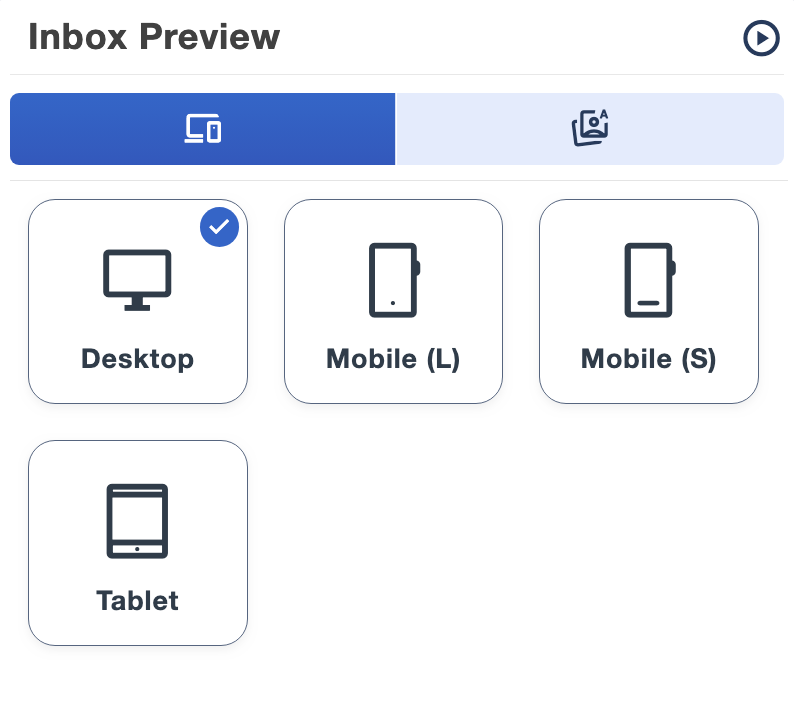
Email Blaster’s designer provides desktop, mobile and tablet preview options. Use these to review the campaign’s layout and reading order as you work.
A device preview is useful, but it is not proof of identical rendering in every email app. Send a test campaign to the inboxes that matter to your audience, including separate tests for classic and new Outlook where relevant.
- Check the design: review text size, spacing, images and the main action.
- Send the test: open the delivered message in representative desktop and mobile clients.
- Change settings: review dark mode, blocked images and narrow reading panes where available.
- Follow the links: check buttons, destination pages, reply details and the unsubscribe route.
- Repeat after edits: changes to content or layout can introduce new problems.
Forwarding an email can change its HTML. Test a direct campaign delivery rather than relying only on a forwarded copy. For a complex custom design, consider a specialist rendering test service alongside your own inbox checks.
Your email compatibility checklist
- Essential information remains readable when images are blocked.
- Fallback fonts keep the text and buttons usable.
- Columns stack in a sensible reading order on mobile.
- Buttons are easy to tap and link to the correct page.
- Light and dark appearances have been checked.
- The first frame of an animation makes sense on its own.
- Representative desktop and mobile inboxes have received a direct test.
- The sender, reply address and unsubscribe route have been reviewed.
Need help with a campaign that looks different in an inbox? Tell our team which app, device and version you are using, and share a screenshot of the issue so we can help you investigate.
Ask our UK support team →Email compatibility: common questions
Why does an email look different in Outlook and Gmail?
Email clients interpret and filter HTML and CSS differently. App versions, screen size and settings also affect the result. Use a simple base design and test the clients your audience uses.
Does new Outlook behave exactly like classic Outlook?
No. New Outlook for Windows is based on WebView2, while classic Outlook has Word-based HTML handling. Check both where they matter to your audience.
Does Gmail support responsive email styling?
Google documents support for media queries and a defined range of CSS. Check its supported rules and test your actual message; unsupported styling may be ignored.
Can a preview guarantee compatibility?
No. A preview helps you check layout, but a delivered-message test is still important. An email client can change or remove styling that looks correct in a browser.