Your sending domain is the part of your email address after the @ symbol. When you send a campaign, the receiving provider needs evidence that your email marketing platform is authorised to use that domain. A familiar sender name or logo is not enough: anyone can attempt to imitate them.
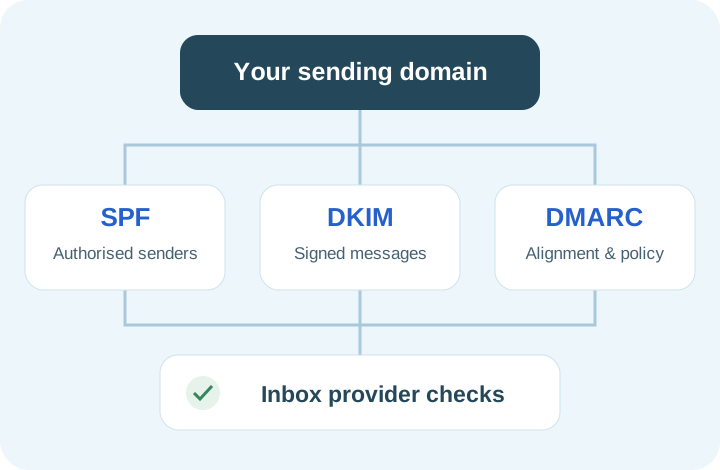
Domain verification connects your domain to Email Blaster through records published in DNS. SPF, DKIM and DMARC help receiving systems check who sent a message, whether its signed content has changed, and whether authentication matches the domain your recipients see.
This is an essential foundation for professional email marketing. Correct authentication supports delivery, reduces opportunities for impersonation and gives you more control over your domain’s reputation. It does not guarantee inbox placement: permission, complaints, content and sending behaviour still matter.
Mailbox providers now expect authentication
Gmail requires SPF or DKIM for all senders to personal Gmail accounts. Bulk senders sending approximately 5,000 or more messages a day to those accounts must use SPF, DKIM and DMARC, with alignment and additional sender requirements. Outlook.com also enforces SPF, DKIM and DMARC requirements for high-volume senders to its consumer services. Authentication failures can cause rejection or affect delivery.
Even if your list is smaller, verifying your domain is a sensible starting point. Set it up before your first campaign and recheck it whenever you change domain providers or sending services.
Authentication confirms aspects of your sending identity. It does not give you permission to email someone. Email Blaster’s Terms of Service still apply.
You will need access to the DNS settings for the domain used in your sender address. These may be managed by your domain registrar, hosting company or a separate DNS provider. If you cannot find them, ask your IT team or domain provider to help.
Confirm your sending domain. Use a domain your organisation controls. You cannot publish these records for a personal gmail.com or outlook.com address.
Find the active DNS provider. The domain’s nameservers determine where changes must be made; editing an unused DNS zone will have no effect.
Save the existing records. Record the current SPF, DKIM and DMARC settings so your IT team can assess changes and keep other email services working.
Check your existing senders. Include your everyday business email, other marketing platforms and any systems that send mail for your organisation.
Domain verification normally involves adding or updating individual records. You do not need to change your website records, move your domain or replace your mail routing records.
The records below contain dummy example data for illustration only. Do not copy them into your DNS settings. DNS control panels use different labels: “Host”, “Name” and “Record name” often mean the same thing. Some automatically add your domain to the name, so check the preview before saving.
Get your account’s exact settings. The exact domain verification information for your account is available in the Sender Profiles section when you are logged in to Email Blaster. Check the SPF, DKIM and DMARC settings there before making any DNS changes.
SPF TXT record
Host / name
@ (or blank, depending on your provider)
Value
v=spf1 include:spf.sending-service.example ~all
SPF identifies the services allowed to send using your domain in the envelope sender. If an SPF record already exists, merge Email Blaster into it. Do not publish a second SPF record.
DKIM CNAME record
Host / name
example-selector._domainkey
Target / value
dkim.sending-service.example
DKIM adds a digital signature to outgoing messages. The example CNAME illustrates how receiving servers locate a public key to check a signature. Use the selector and target supplied for your account. Other services can use their own DKIM selectors alongside this one.
This dummy record illustrates a monitoring policy and a placeholder reporting address. Request the appropriate settings for your account and have your IT team review any existing DMARC record before making changes. DMARC checks whether SPF or DKIM passes and aligns with the visible From domain. The p=none policy does not ask receivers to quarantine or reject failures.
Already have DMARC? Keep your existing valid policy and ask your IT team to check alignment. Do not downgrade p=quarantine or p=reject to p=none just to follow this example. The example reporting address is a placeholder; any real reporting address must be configured and authorised for your domain.
A domain should have one SPF record at a given hostname, with all authorised services included in that record. Publishing separate SPF records for Outlook and Email Blaster can cause SPF validation errors.
For illustration, a domain using an existing email service might have this dummy SPF record:
v=spf1 include:spf.existing-mail.example -all
Adding a second sending service could look like this dummy combined example:
Keep a space between each mechanism. Preserve any other authorised senders in your actual record and have your IT team review the final value. Do not publish these dummy values or replace a more complex record with this example. Request your account’s exact SPF include before updating DNS.
The ending matters: ~all means soft fail and -all means fail for unlisted senders. Preserve the appropriate policy for your organisation rather than changing it casually. SPF also limits DNS lookups during evaluation, so adding more includes can require a technical review.
Sign in to your DNS provider. Open the domain’s DNS management screen.
Update SPF. Look for a TXT value starting with v=spf1. Edit it to authorise Email Blaster, or add the supplied SPF record if none exists.
Add the DKIM CNAME. Enter the exact host and destination supplied for your client account. Use DNS-only mode if your provider offers proxying.
Check DMARC. Look for a TXT record at _dmarc. Use the settings supplied for your account if there is no valid existing record, following your IT team’s advice.
Save and review. Check each record’s type, name and value. Avoid quotation marks introduced by copying from formatted documents, extra spaces or a duplicated domain suffix.
Use your provider’s normal TTL unless your IT team advises otherwise. Changes often become visible sooner, but allow up to 48 hours for DNS updates to propagate. Cached answers can mean different systems see the change at different times.
Once the records are available, check the domain from inside your Email Blaster account:
Log in to Email Blaster.
Click your avatar in the top-right corner and select Sender Profiles.
Open the sender profile you want to check.
Opening the profile automatically triggers a new scan of the domain.
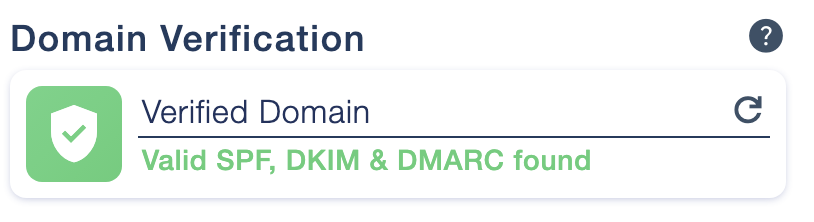
A successful check displays Verified Domain and confirms that valid SPF, DKIM and DMARC records were found, as shown here.
After verification, send a test message and check its authentication results. A DNS scan confirms the published records; testing a real message also helps confirm that your actual sender configuration passes and aligns correctly.
The successful verification status in Sender Profiles.
Check you edited the active DNS zone, selected the right record type and used the correct hostname. Your provider may expect a short host name rather than the full domain. Allow time for cached DNS answers to expire, then reopen the sender profile.
SPF fails
Check for multiple SPF records at the same hostname, a missing Email Blaster include or syntax errors. If you use several services, ask your IT team to review the DNS lookup limit and retain all legitimate senders.
DKIM is missing
Check the CNAME host and destination match the exact DKIM settings supplied for your client account. A CNAME must not conflict with other records at that exact name. Other selectors used by Microsoft 365 or Google Workspace can remain.
DMARC or alignment fails
Check there is one valid DMARC record at _dmarc. Review the domain in your From address and whether passing SPF or DKIM aligns with it. Ask for help before changing an established enforcement policy.
If the records are still not detected after the propagation window, contact your DNS provider or our UK-based team with the domain and the status shown in Sender Profiles. Never send account passwords.
Verification is a foundation, not a one-off guarantee. Recheck the settings after a domain migration, a change of DNS provider or a new sending service. Keep your sender identity consistent and review delivery reports for new authentication errors.
Maintain a permission-based list, honour unsubscribes and avoid sudden unexplained increases in volume. Authentication cannot compensate for unwanted messages or a poor sender reputation.
For stronger protection against domain impersonation, your IT team can assess DMARC reporting and a gradual move towards an enforcement policy after confirming that all legitimate sending services authenticate correctly.