

HomeEmail Blaster Q&AHow do I set my send from details inside Email Blaster?

How do I set my send from details inside Email Blaster?

Published on

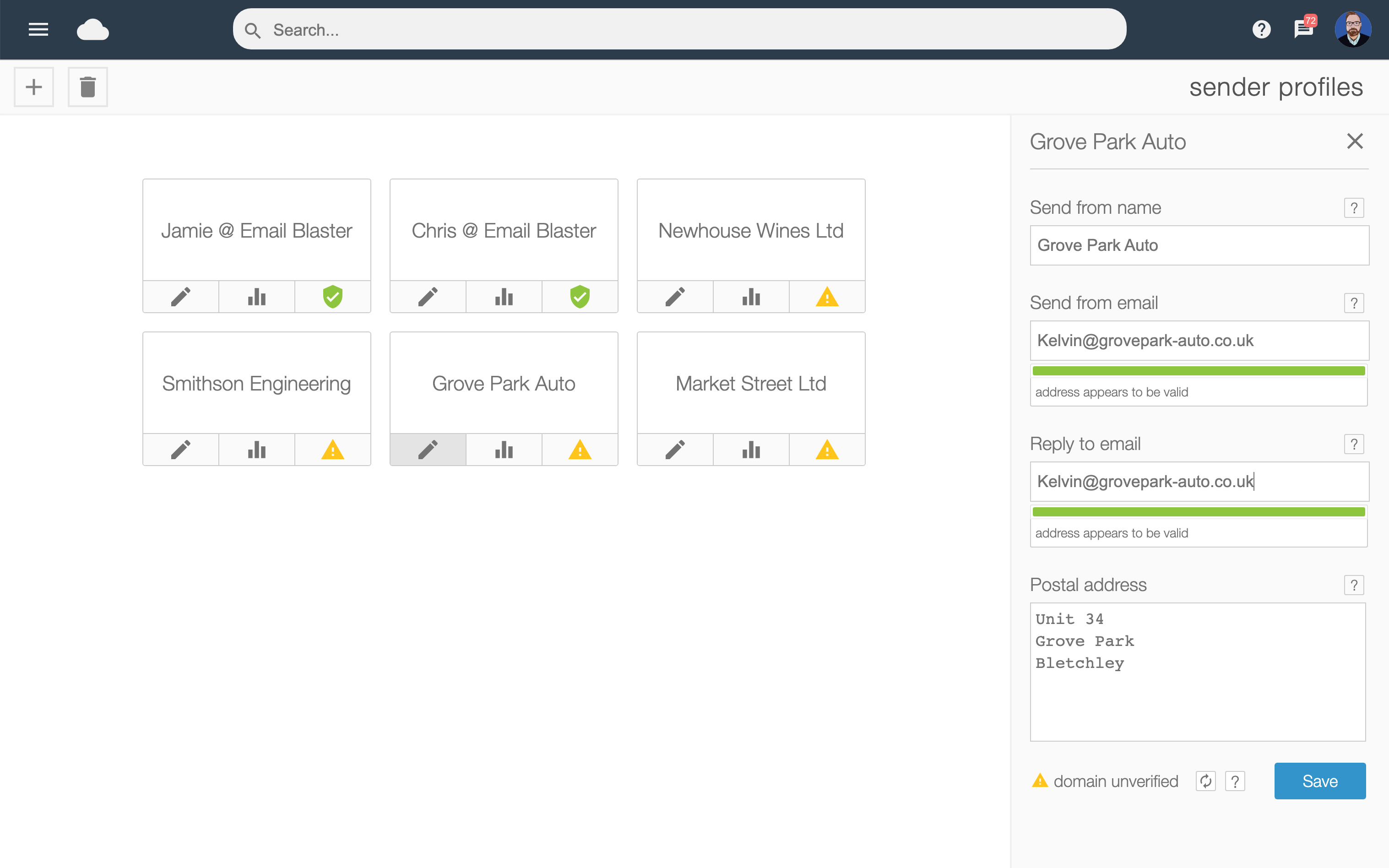
Setting your send from details inside your email blaster account is super easy, just click on the gravatar icon top right and select ‘sender profiles’.

From there, just click on the ‘plus’ icon to create a new profile to enter your send from and reply to email address, company name and office address.

It’s important to note, that you’ll need to use your company domain here. You can’t use @gmail, @hotmai or other free address providers. Typically these domain owners don’t permit their free email addresses to be used for email marketing.

Latest articles

Why Email Blaster Is a Better Choice for UK Businesses Than Mailchimp

For UK businesses looking to build stronger customer relationships, email marketing remains one of...

Is It Okay to Use AI to Write Email Body Text?

Artificial intelligence has become a powerful tool for email marketers, offering ways to save...

How to Create an Email Call To Action That Really Works

Every email you send has a goal. Whether it’s driving traffic, boosting sales, or...

What Is the Best Number of Clickable Links to Have Inside an Email?

When it comes to email marketing, one of the most common questions is surprisingly...
- Try Email Blaster for free -spot_img